-
PTIB Report Admin Tool
-
To access the “PTIB Report” admin tool click the “Students” tab at the top of the page. Then click the “Settings” sub tab. Then select the “PTIB Report Admin Tool” option.
-
Once there you will be able to enter the PTIB ID for each campus and program at your school.
-
-
Lead/Student Profile
-
The following fields are needed in order to use this report. You need to ensure that these fields are active on your lead/student profile.
-
Any fields that are not active will appear in the “Inactive Fields” list, and can be added to your lead/student profile in the desired location.
-
In order to access the “Profile” tool mouseover your name on the top of the page. Then click the “School Settings” option in the dropdown. Then select the “Profiles” admin tool.
-
Here is the list of fields that need to be active for the report to be completely automated:
-
PEN
-
Immigration Status
-
Citizenship Code
-
Disability
-
Aboriginal
-
First Nations
-
Métis
-
Inuit
-
Registered, Licensed, Certified
-
-
-
PTIB Student Report/Export
-
To access the “PTIB Student Export” click the “Students” tab, select “Reports” from the left navigation, select the “School Reports” section and you will see the “PTIB Report –
Student Data” report
-
Select the Campus, Program Start Date, and Program that you would like to view the report for and click “Run Report”
-
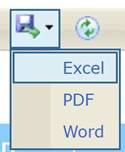
You can then export this report into excel by clicking the “Export” button at the top of the report and then selecting “Excel”:
-
This file contains the following columns/fields, here is where the data is drawn for each field:
-
Student ID Number = This is the “Student Number” field
-
PEN = This is the “PEN” field
-
Usual First Name = This is the “Preferred Name” field
-
First Name = This is the “First Name” field
-
Middle Name = This is the “Middle Name” field
-
Last Name = This is the “Last Name” field
-
Birth Date (YYYY-MM-DD) = This is the “Birthday” field
-
Gender = This is the “Gender” field
-
Immigration Status = This is the “Immigration Status” field
-
Citizenship Code = This is the “Citizenship” field
-
Disability Y/N (opt) = This is the “Disability” field
-
Aboriginal Y/N (opt) = This is the “Aboriginal” field
-
First Nations Y/N (opt) = This is the “First Nations” field
-
Métis Y/N (opt) = This is the “Métis” field
-
Inuit Y/N (opt) = This is the “Inuit” field
-
Permanent Address Line 1 = This is the “Address1” field
-
Permanent Address Line 2 = This is the “Address2” field
-
City = This is the “City” field
-
Province / State = This is the “Province/State” field
-
Country = This is the “Country” field
-
Postal Code = This is the “Postal Code” field
-
Current Phone Number = This is the “Telephone” field
-
Permanent Address Phone Number = This is the “AdditionalPhone” field
-
Email address 1 = This is the “Email” field
-
Email address 2 = This is the “Additional Email” field
-
Email address 3 = This is the “Additional Email” field
-
Delete Flag = This field is left blank and can be filled in manually on the spreadsheet
-
-
-
PTIB Enrollment Report/Export
-
To access the “PTIB Student Export” click the “Students” tab, select “Reports” from the left navigation, select the “School Reports” section and you will see the “PTIB Report –
Enrollment Data” report
-
Select the Campus, Program Start Date, and Program that you would like to view the report for and click “Run Report”
-
You can then export this report into excel by clicking the “Export” button at the top of the report and then selecting “Excel”:
-
This file contains the following columns/fields, here is where the data is drawn for each field:
-
Program Location & Title = This data is the school/campus name, the PTIB campus code (from the PTIB admin tool), the program name, and the PTIB program code (from the PTIB admin tool).
-
Student ID Number = This is the “Student Number” field
-
Student Name = This is the students full name
-
Full Time Flag = This is from the program status admin tool. You can set each program status to either full time or part time
-
Student Start Date = This is the students start date, from “Program Details” section of the Program tab
-
Student End Date = This is the students Grad Date, from “Program Details” section of the Program tab
-
Program Achievement Status = This is the students program status
-
Graduate Follow Up Date = This is the date stamp of any “Graduate Follow Up” booked with the student on the calendar. When you click “Schedule a Follow Up” you will see “Graduate Follow Up” as an option
-
Follow Up Type = This is the students employment status. You can set the students employment status on the contact sheet. And you can mange your available employment statuses using the “Employment Status” admin tool (Found in Students -> Settings -> Administration)
-
Registered, Licensed, Certified = This is the “Registered, Licensed, Certified” field
-
Delete Flag = This field is left blank and can be filled in manually on the spreadsheet
-
-