The Course materials tool allows you to upload course materials to CampusLogin in an organized manner. You can access the Course Materials by clicking on the “Students” tab, then the “Dashboard” sub tab.
-
In the dashboard there is a column labelled Communicate. In this column you will find the Course Materials icon.
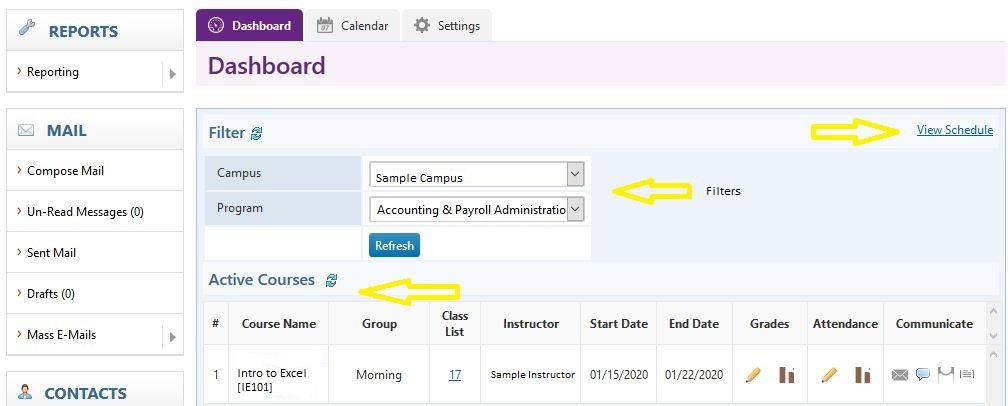
-
You can click on the Course Materials icon and you will be taken to the Course Materials Tool.
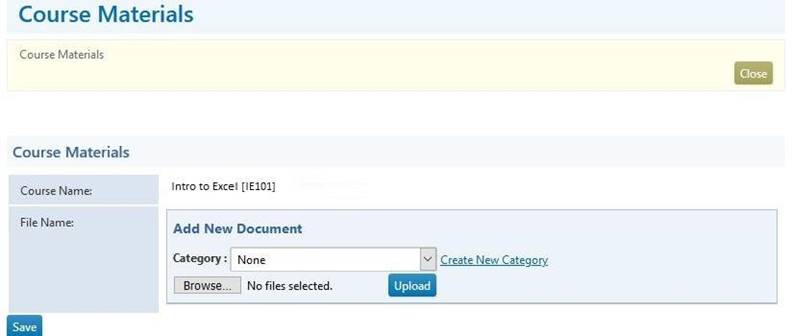
-
Your organization may or may not have already created the categories they wish used or you may have been given the permission to create additional categories if needed.
Process
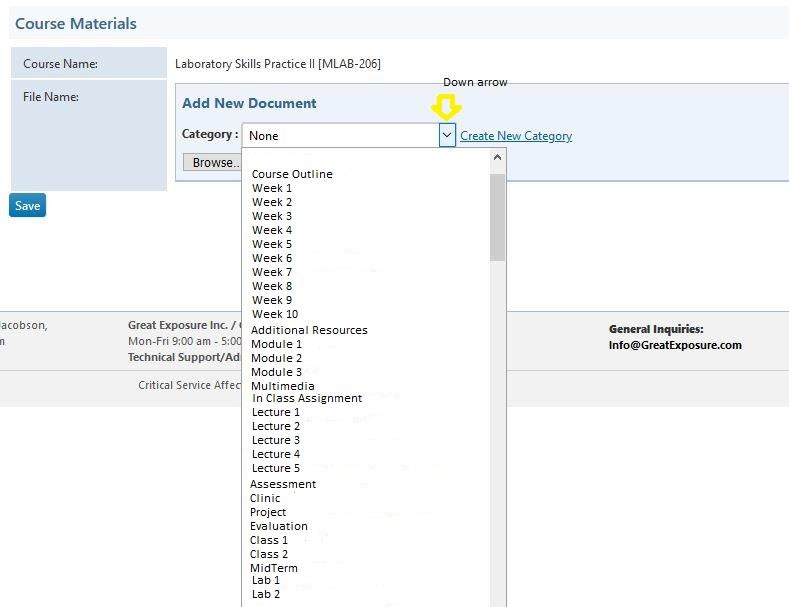
Before uploading any materials, you will need to choose what category it belongs with. Categories can be shared with all programs and are simply a way to organize your material. Consider them like a file folder.
-
Click on the down arrow to see what categories are available.
-
Select the appropriate heading
-
Click on the browse button to select the material to upload to that category
-
Click on the upload button
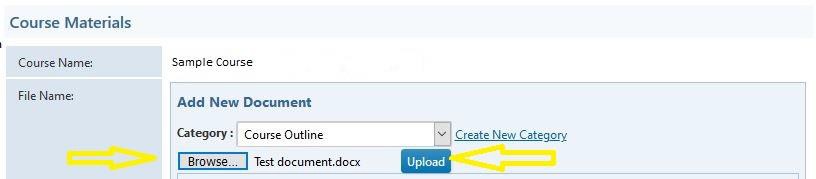
An example of an organized course is below:
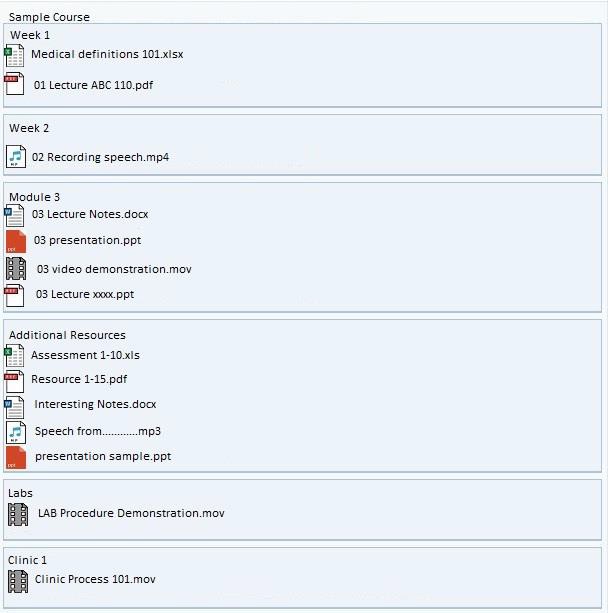
The category is above, and any materials related to that category fall within it.
Caution
Always check to see if your material can be uploaded under an existing category before you create an additional category. By not checking you run the risk of creating disorder like multiple duplicates. An example of an inefficient system is below: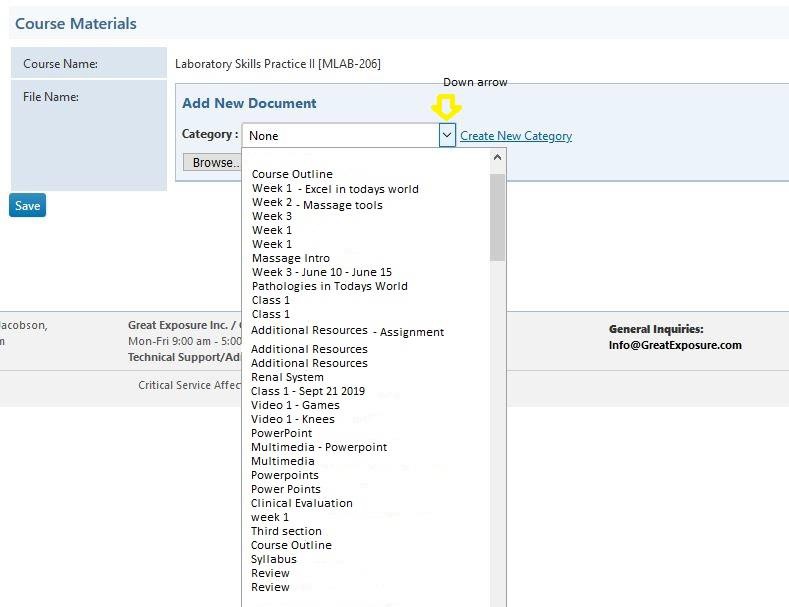
Here you see multiple duplicates, different spellings of the same category, naming a category the same name as a course document, and being too specific in regard to a category that reflects just 1 course and 1 instance.
StudentLogin
Your organization can activate this feature for the StudentLogin tool to allow students to log in and download this material themselves.
Speak to your Campus Manager or contact your CampusLogin account manager if you need any training or assistance using this tool.
CL-Students-Course-Materials-Tool-For-InstructorsDownload