-
Overview
To customize CampusLogin to meet the needs of your school please complete the setup checklist.
-
Check List
You will be directed to the check list automatically when you login. To return to the checklist anytime, click the “CampusLogin” logo in the header, and then “CampusLogin Setup” button towards the top right of the page.

-
Remaining Items
The check list will show you how many items are remaining to be configured for all of the components that your school has purchased. You can click on the number to complete the remaining items. Below the check list you will see links for support if you need any help completing the check list.

-
Check List
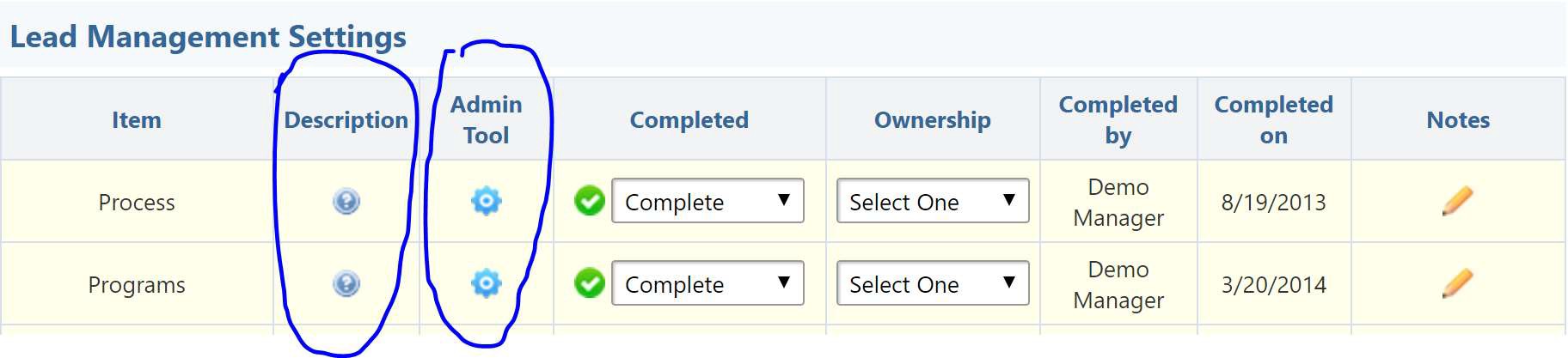
When you click on the remaining items you will be taken to the check list to complete your setup. You will see a “Description” column which shows the function of each item on the check list. And beside the “Description” column you will see the “Admin Tool” column, which contains the link to the admin tool to complete the task.
-
Completing the Check List
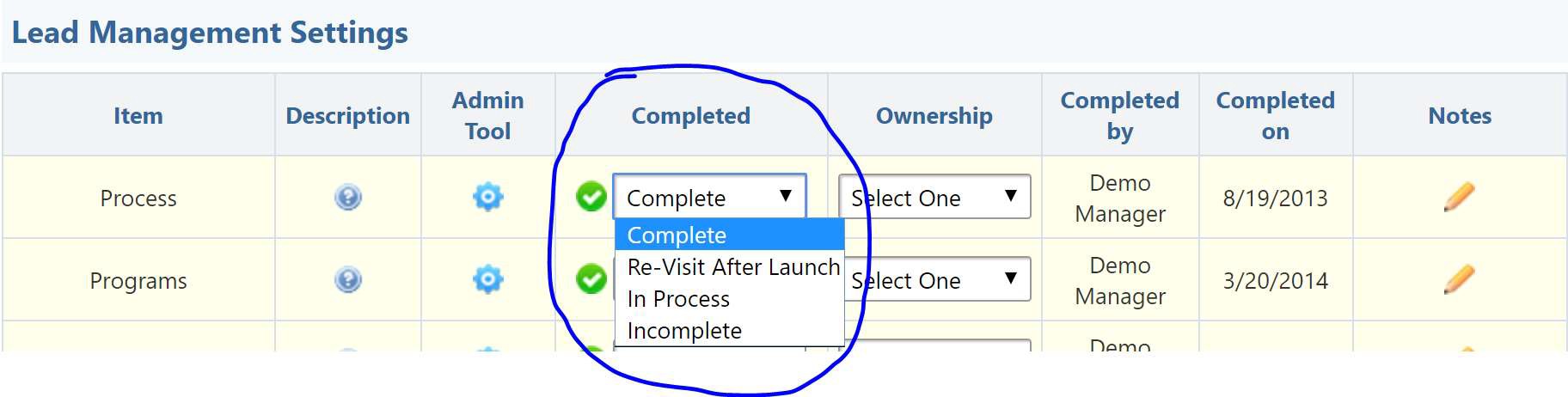
The purpose of the check list is to customize the software around your school. The check list also lists all of the features available to your school, some of which are optional. The check list will present you with all available features, which you can decide if you wish to use or not. For all features that you do not want to use, they can be added at any time in the future. Simply mark each item as “Complete” in the “Completed” column. Or mark the item as “Re-Visit After Launch” if this is a feature that you do not want to configure/use for launch. Either way this item will then be removed from the list of outstanding items. Please be sure to mark each item as ether “Complete” or “Re-Visit After Launch”. Once the check list is at 0 items, your setup is complete and your school is now live.
-
Ownership
If there are multiple people working your check list together, you can assign users to each task by using the “Ownership” column. You are also able to use the “Note” feature to save notes for everyone to see. CampusLogin staff will assign ownership to any items that they are completing for your school.
-
Support
If you have any questions, or need assistance completing any item on the check list, please reach out to our setup team for assistance. We are available by email, telephone, or you can
request a webinar if you wish to do a working session together.